
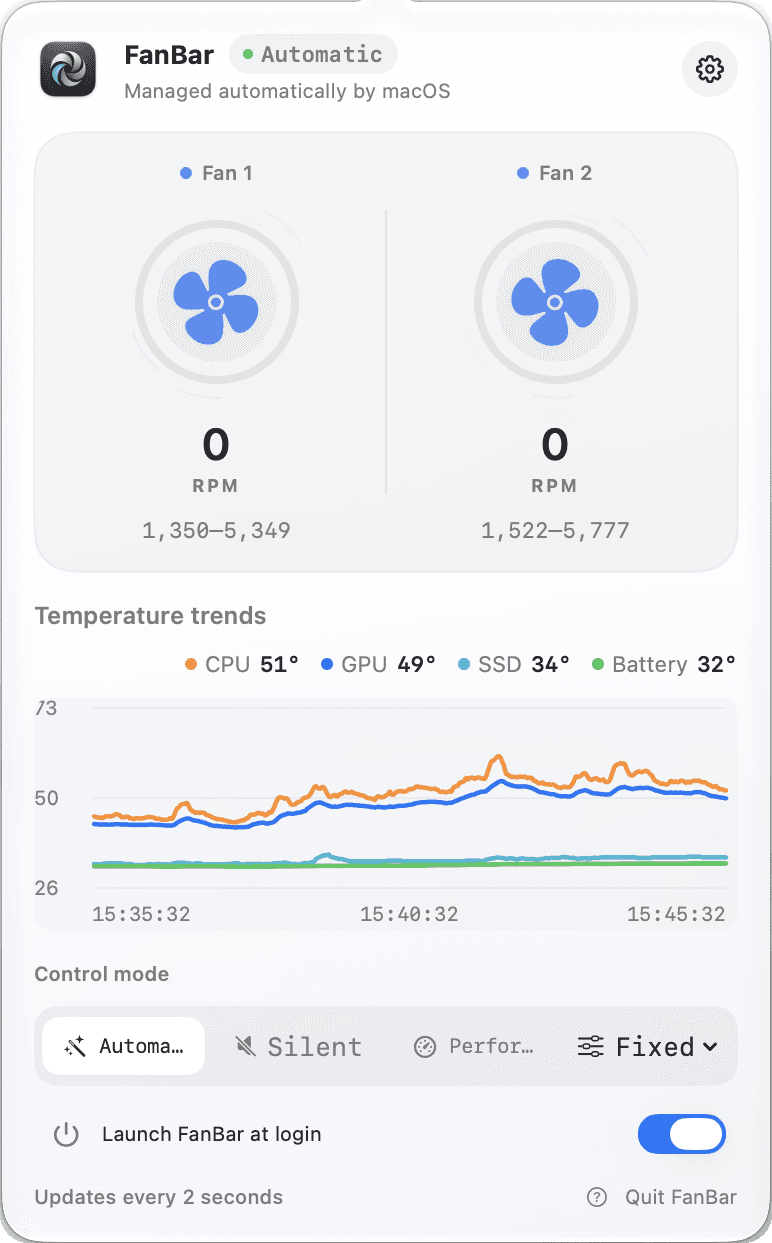
Everything you need to understand and tame your Mac's fans.
At-a-glance status
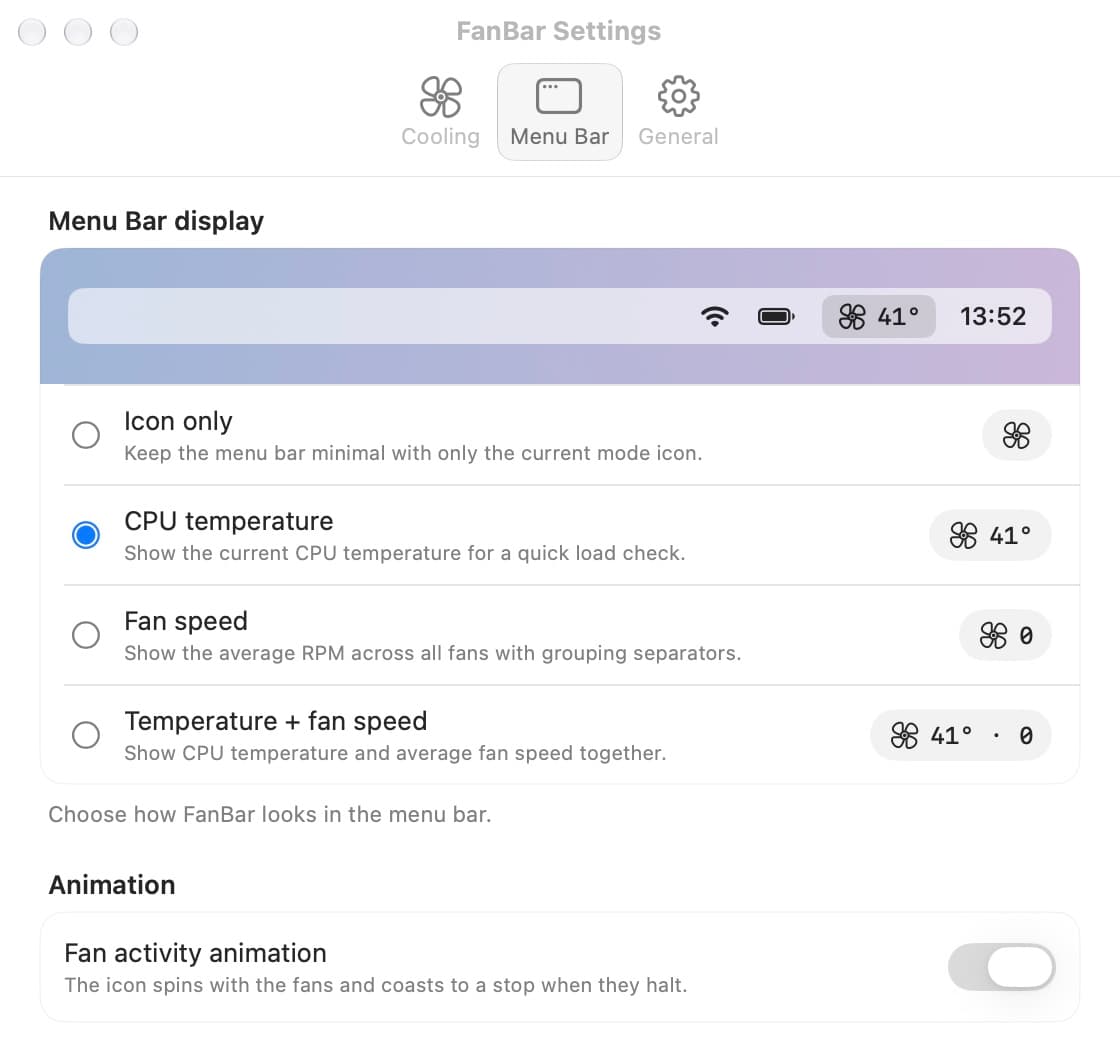
Show the menu-bar icon, CPU temperature, average fan RPM, or both.
Desktop widget
On macOS 14+, pin FanBar to the desktop for RPM, speed, and control mode.
Live visualization
A rolling ten-minute chart, plus airflow that follows real RPM.
Multiple cooling modes
Automatic, a fixed target RPM, or a Silent, Balanced, Performance, or Extreme preset.
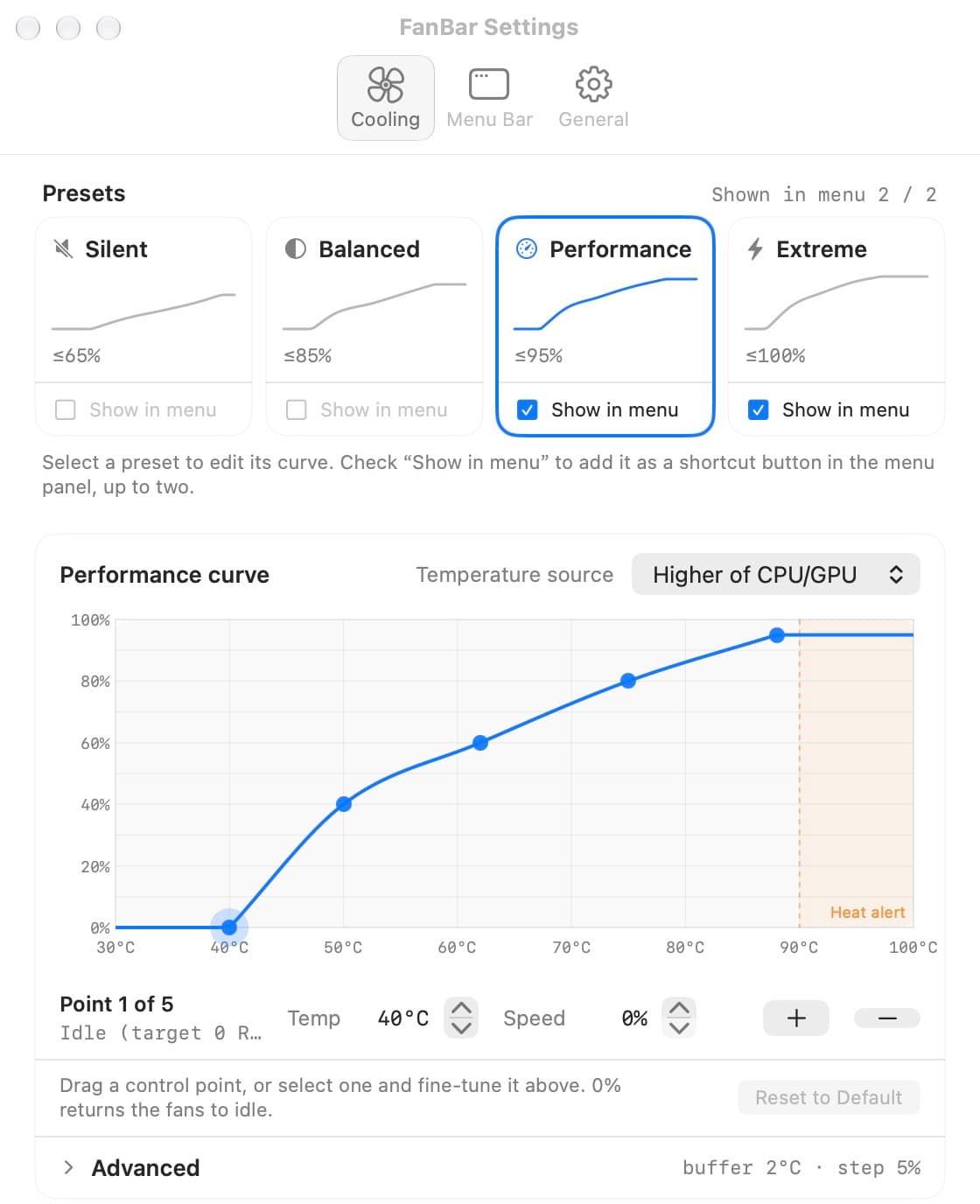
Smart temperature curves
Each preset has its own editable curve, mapping temperature to fan output.
Selectable temperature source
Drive the curve from CPU, GPU, or SSD; unavailable sensors fall back safely.
High-temperature alerts
Optional notifications at 90°C — one alert per episode, re-armed after cooling.
Safe by default
Targets stay clamped to hardware range; failure restores automatic control.
English & Simplified Chinese
Follow System, or pin English or 简体中文 — switches instantly.
Manual control only after you approve it.
FanBar keeps everyday use safe and quiet under macOS's own automatic management. Manual fan control opens only after a signed, privileged helper is explicitly authorized — first-run guidance explains exactly why it's needed.
- FanBar.app → privileged XPC → signed helper (root) → AppleSMC
- The helper only reads fans and sets a bounded target — never arbitrary SMC writes
- Presets can auto-restore Automatic after 15 min, 30 min, or an hour
- Every release ships notarized by Apple; the source, helper included, is public
A calm, native interface — not a dashboard.
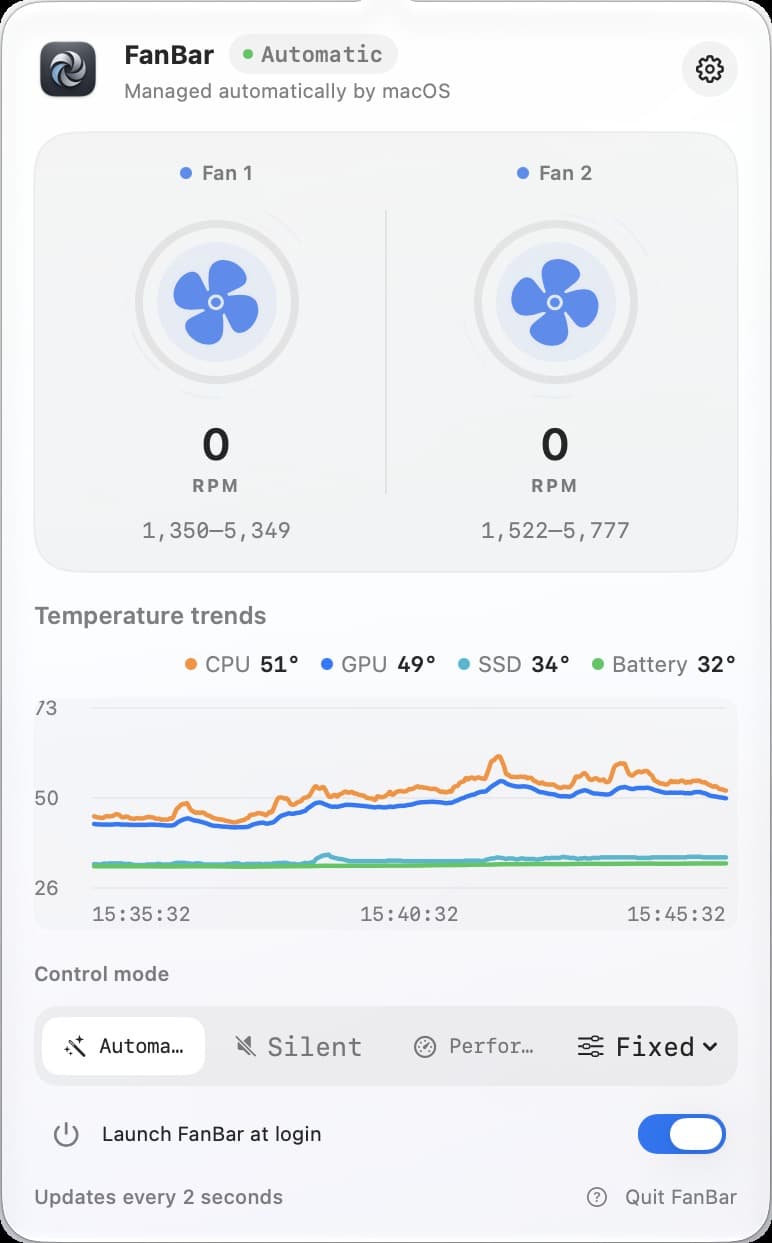
From install to manual control in three steps.
Launch & read
Open FanBar and see current temperature and fan speed right in the menu bar.
Enable fan control
Choose Enable fan control and follow the macOS authorization prompt.
Choose a preset
Pick a preset or fixed RPM — or return to Automatic any time.